Setup guide
From box to wall in about ten minutes. This walks through an iPad. Android tablets are at the bottom.
What you need
- An iPad or other tablet, and a way to mount it and keep it plugged in
- Wi-Fi or a hotspot in the rig
- Your invite link from us
Get it on the screen
Open your invite link in Safari
On the iPad, tap the link we sent you. It opens Rig 2 View in Safari.
Add it to the Home Screen
- Tap the Share button (the square with the arrow). On newer iPads it can be tucked under the ••• button.
- Tap Add to Home Screen. If you see Open as Web App, leave it on.
- Tap Add.
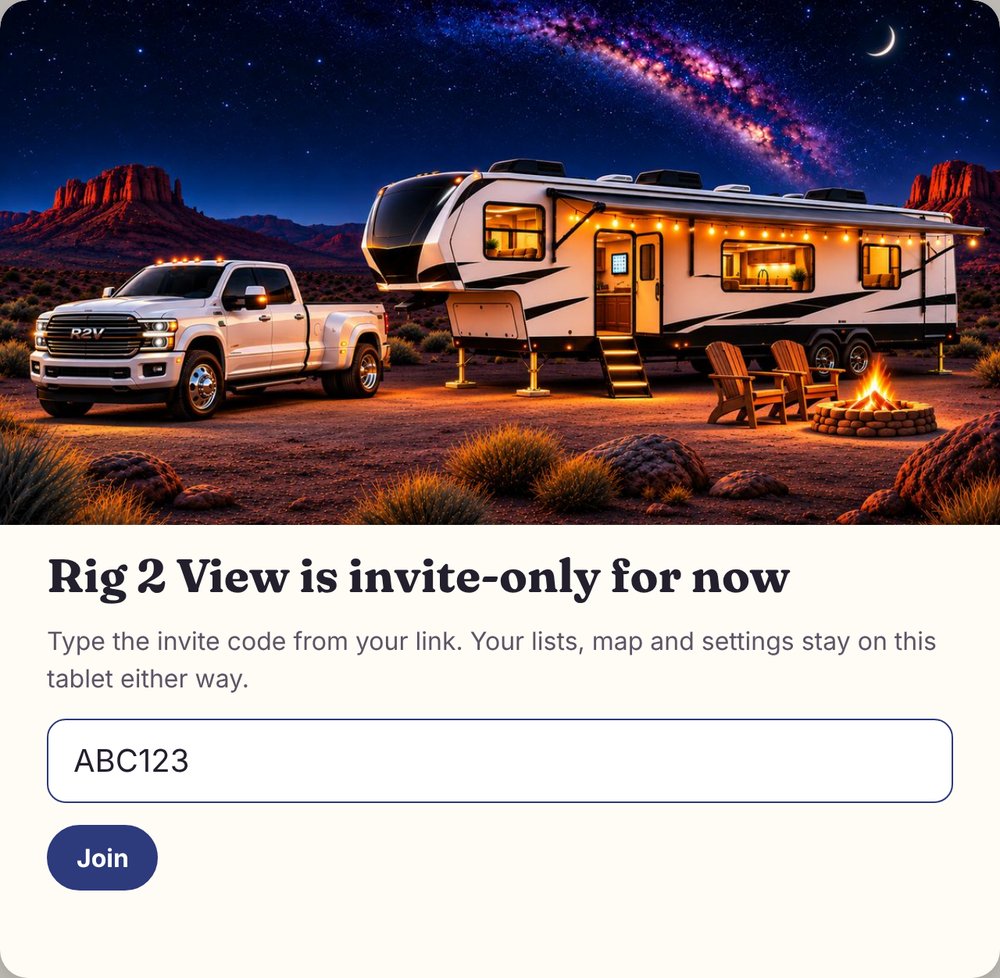
Type your invite code, once
The first time you open the icon, it asks for your invite code. The icon keeps its own storage, separate from Safari, so it needs the code once even though the link already had it. The code is in your invite link, after invite=. Type it in and tap Join.
Tell it where you're parked
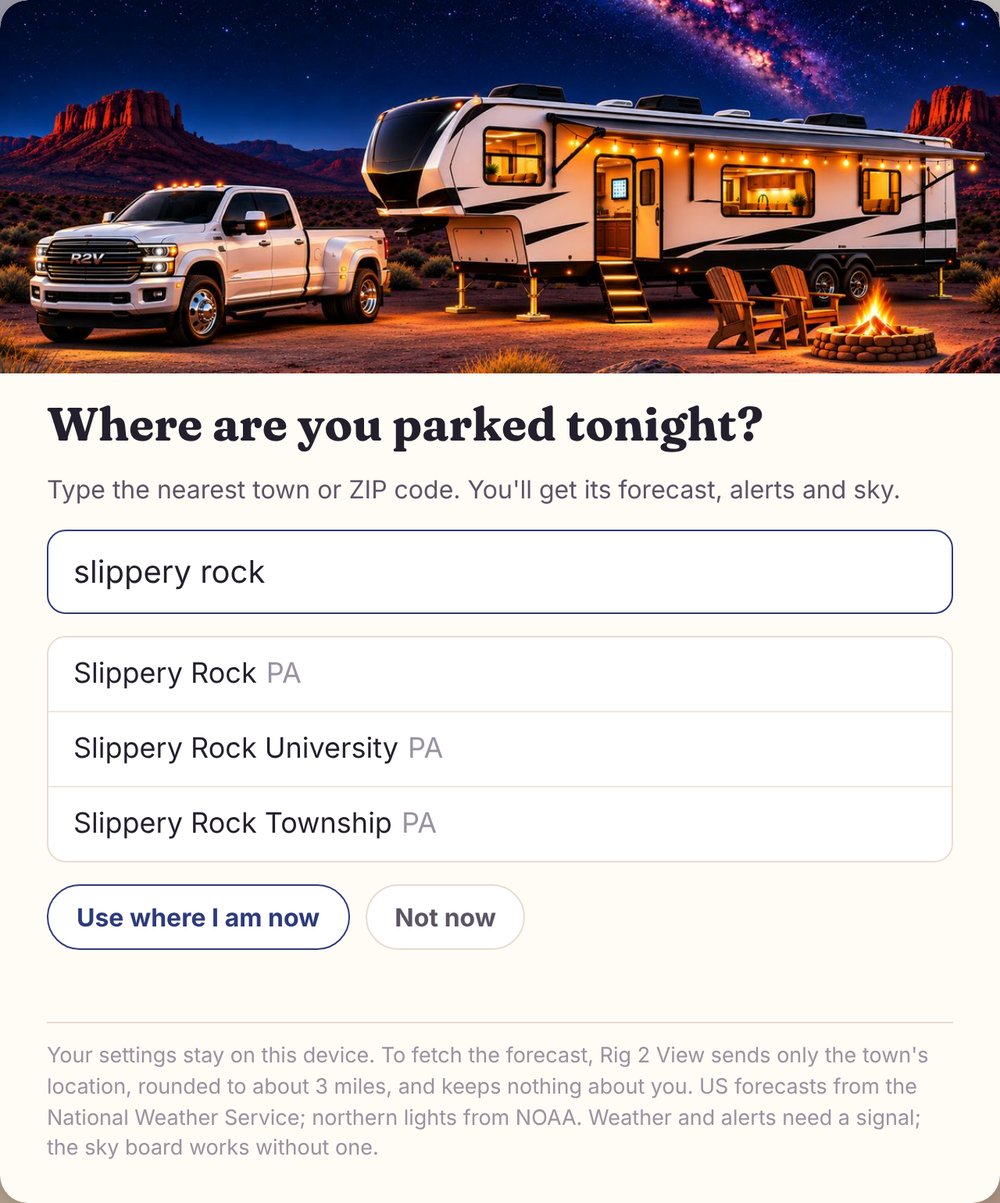
Type the nearest town or the ZIP code, then tap your town in the list. Or tap Use where I am now.
When you move, tap Change at the top right of the home screen and pick the new town.
Make the iPad a wall screen
Keep the screen on
Settings → Display & Brightness → Auto-Lock → Never. Keep the iPad plugged in. Rig 2 View dims itself at night, so the screen isn't glaring at 2 a.m.
Lock the rotation
Mount it the way you like, sideways or tall. Then swipe down from the top-right corner to open Control Center and tap the lock button, so it doesn't flip when the rig rocks.
Optional: keep fingers in Rig 2 View
Grandkids or guests poking at it? Guided Access keeps the iPad in one app.
- Settings → Accessibility → Guided Access, turn it on and set a passcode.
- Open Rig 2 View, press the top button three times quickly, then tap Start.
- To get out, press the top button three times again and enter your passcode.
Make it yours
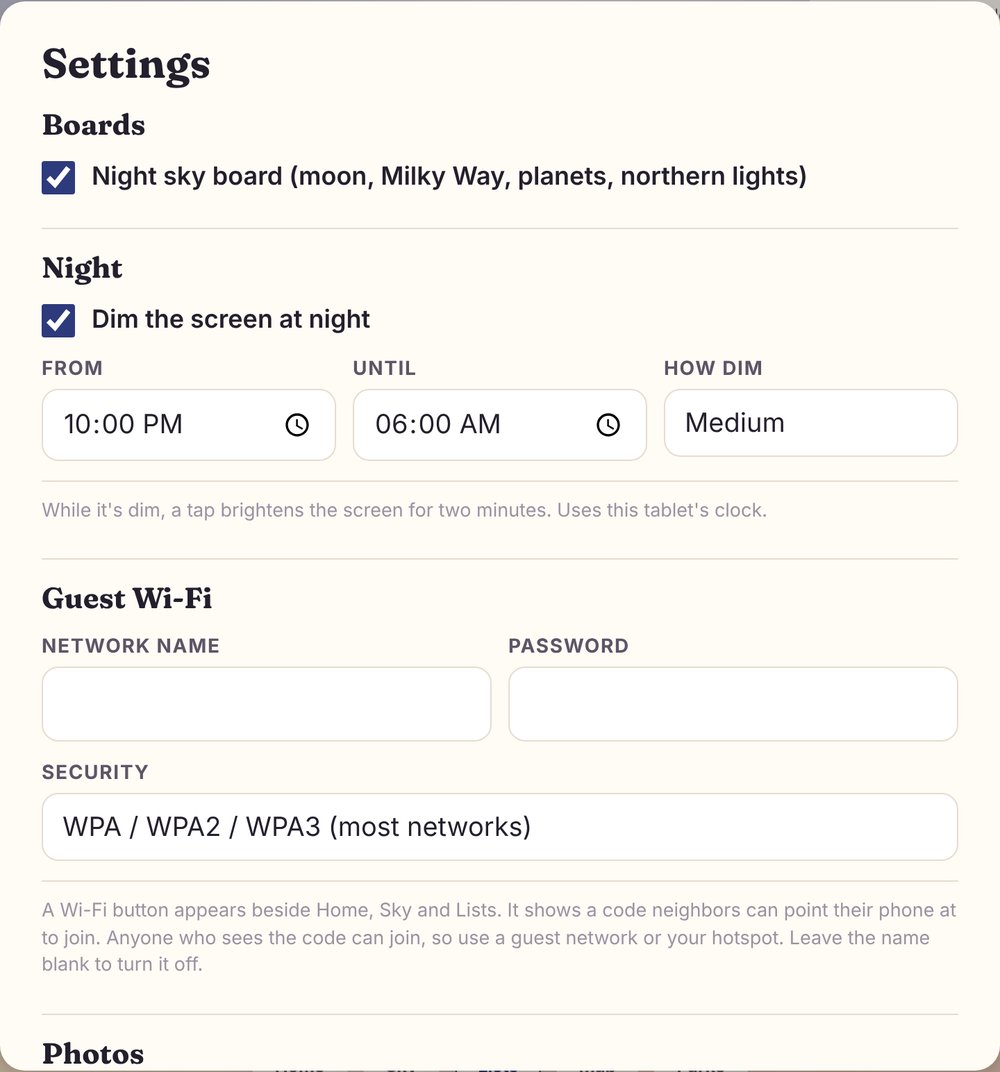
Settings
Tap Lists at the bottom, then Settings at the top right.
- Night sky board. Not a stargazer? Untick it, and the Sky screen goes away.
- Dim the screen at night. On from 10 PM to 6 AM unless you change it. While it's dim, a tap brightens it for two minutes.
- Guest Wi-Fi. Enter your network name and password, and a Wi-Fi button shows a code guests point their phone at to join. Use a guest network or your hotspot, since anyone who sees the code can join.
- Photos. Add your own pictures for a slideshow. They stay on the iPad.
Countdowns, lists and the map
- Countdowns: tap + Add on the home screen's Counting Down card. Tap one to change it.
- Checklists: Setup and Teardown come with starter steps. Tap Edit Setup or Edit Teardown to make them match your rig.
- Map: tap a state or province, then pick Passed through or Stayed. Switch between States and Provinces at the top.
Back it up now and then
Everything lives on the iPad, and nowhere else. Tap Lists → Back up to save a file you can keep. If the iPad dies or you get a new one, Restore from a backup puts it all back.
Not an iPad?
Android tablet
Open your invite link in Chrome. Tap the ⋮ menu, then Add to Home screen (some tablets say Install app). Open it from the icon and pick up at step 3. Look for your tablet's own "screen timeout" setting to keep it on.
If something's off
The top of the screen looks blurry
You're in Safari. Close it and open Rig 2 View from the Home Screen icon.
It asks for the invite code again
That happens if the iPad cleared its storage, or if you opened it somewhere new, like Safari instead of the icon. Type the code again. If you have a backup, restore it to get your lists back.
It seems stuck on an old version
It updates itself within a few minutes when nobody's using it. If it still looks old a day later: back up first (deleting the icon deletes what's saved in it). Then delete the icon, open beta.rig2view.com/?new in Safari, add it to the Home Screen again, and restore your backup.
Park notices take a minute to show up
The first time anyone checks a state, park notices can take a minute or three to fill in. After that they're quick.
Still stuck?
Email support@rig2view.com. Tell us what screen you're using and what you see.